Shoes & sneakers
AI shoe photography for sneakers, boots and sandals
To make shoe product photos with AI, upload 1 to 8 photos of the shoe to Flash Shoot in Induce AI, covering the outer side, inner side, heel and sole. Choose whether a model wears it, set the background and light, and generate stills and short videos. Check logos, stitching and the colourway against the real pair before you publish.
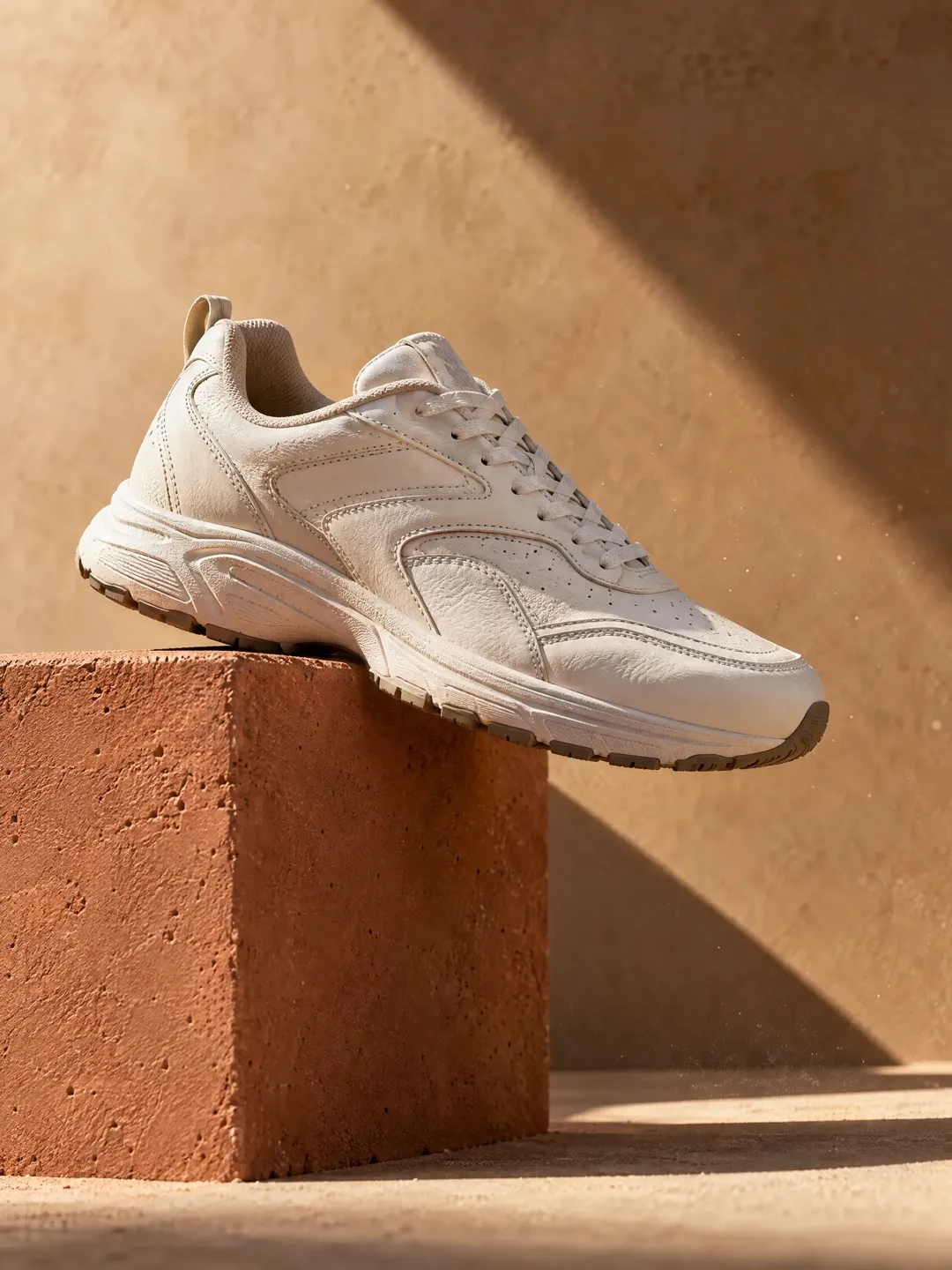
- Input
- 1 to 8 product photos (PNG, JPG, WebP or HEIC)
- Outputs
- Still images and short videos
- Formats
- Stills 3:4 by default; video 9:16, 1:1 or 16:9
- Model
- None, stock, your own photo, or described
What makes shoes hard to photograph
A shoe has no single front. Buyers expect the outer side, the inner side, the toe, the heel and the sole, and each angle shows something different. Shape matters too: a shoe photographed without stuffing or shoe trees looks collapsed, and a slight tilt can make a slim last look wide.
Materials behave differently under the same light. Suede and nubuck absorb light and lose texture if lit flat. Patent leather reflects like glass. Knit and mesh uppers need light from the side to show their weave. White sneakers are the classic problem: expose for the shoe and the white turns grey, expose for the background and the shoe loses its edges. Colourway accuracy is the other big one, because a sneaker sold in a named colour must match it.
The angles a shoe listing needs
Most shoe listings follow the same order, and shoppers have learned to expect it. Keep the same background and light across the set so the shoe looks consistent.
- Outer side profile, toe pointing left, as the main image.
- Inner side profile, which often shows a different logo or panel.
- Front three-quarter view to show the toe shape and depth.
- Back view of the heel, heel tab and any pull loop.
- Top-down view showing lacing and the opening.
- Sole view for tread and grip.
- On-foot shots, standing and walking, to show fit and proportion.
Formats for stores and ads
For the main listing image, many marketplaces ask for a plain white background with a single shoe or the pair and nothing else. Check the current rules for your marketplace, as they vary by category.
On-foot and street shots belong in secondary images and ads. A 9:16 video of a slow turn or a few steps works for Reels and Shorts, and footwear suits motion because buyers want to see how the shoe flexes. Use a 3:4 still for portrait feed posts and 16:9 for banners. In Flash Shoot, stills default to 3:4 and videos can be 9:16, 1:1 or 16:9. Flash Films can turn a shoe into a short ad film with a storyboard you approve before the shoot.
What to check before you publish
Logos and small text are where AI images most often go wrong. Check the side logo, the tongue label and any heel print letter by letter. Count the eyelets. Check that stitching lines run where they do on the real shoe and that panels have not merged or split.
Compare the colourway in neutral light, including the sole colour, which often shifts. On on-foot shots, check that left and right shoes are a correct pair and that the shoe size looks believable for the foot. Your reference photos decide most of this: shoot the shoe stuffed, in even light, from every angle you want back.
Shoe shot list with placements
| Shot | What it shows | Best format |
|---|---|---|
| Outer side profile | Silhouette, main logo, colourway | Main listing image on white |
| Inner side profile | Second side, inner panels | Listing gallery |
| Front three-quarter | Toe shape and volume | Listing gallery, 3:4 feed post |
| Heel and back | Heel counter, tab, pull loop | Listing gallery |
| Sole | Tread pattern and grip | Listing gallery |
| On-foot walking | Fit, flex, how it looks worn | 9:16 video for Reels and Shorts |
| Street or lifestyle | Styling and mood | 3:4 feed post, 16:9 banner |
How to do it in Induce AI
Upload the shoe
Add 1 to 8 photos of the same shoe, stuffed to hold its shape: outer side, inner side, front, heel, top and sole.
Choose the model option
Pick no model for packshots, or a stock model, your own model photo or a described model for on-foot shots.
Set background and light
Choose a plain light background for listings, or a street or studio setting for ads, and a light direction that shows the material texture.
Generate stills and videos
Generate stills for each angle and a short 9:16 video of the shoe in motion, with up to 4 variants per output.
Review and download
Check logos, eyelets, stitching and colourway against the real pair, then download the ones that match.