Jewellery
AI jewelry photography for rings, earrings and necklaces
To make jewellery product photos with AI, upload 1 to 8 clear photos of the piece to Flash Shoot in Induce AI, choose whether a model wears it, set the background and light direction, and generate stills and short videos. Then compare each result with the real piece, especially the stones, metal colour and any engraving, before you publish.
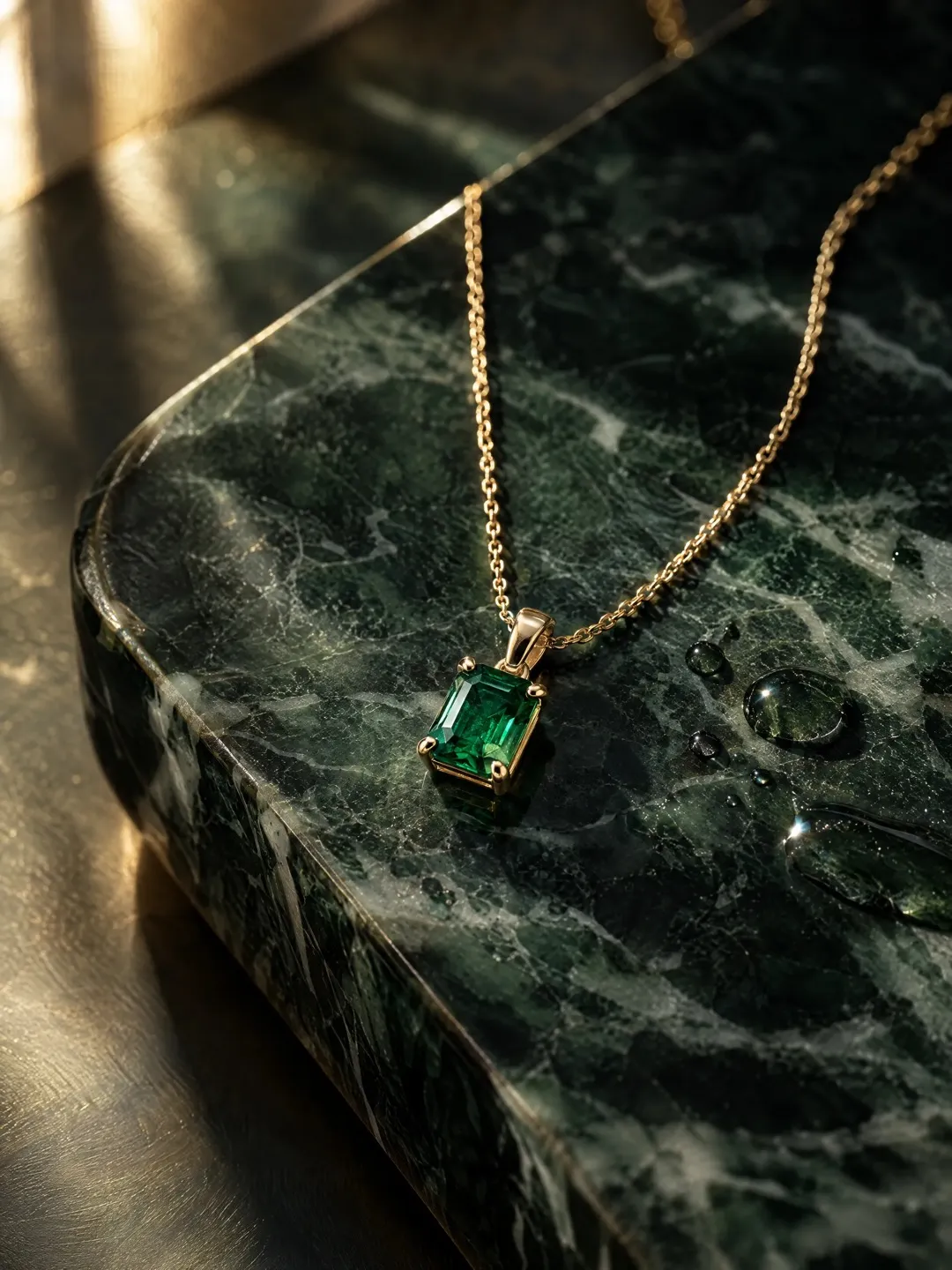
- Input
- 1 to 8 product photos (PNG, JPG, WebP or HEIC)
- Outputs
- Still images and short videos
- Formats
- Stills 3:4 by default; video 9:16, 1:1 or 16:9
- Model
- None, stock, your own photo, or described
Why jewellery is hard to photograph
Polished metal is a mirror. It reflects the room, the camera and the person holding it, which is why studio jewellery shots use light tents and white cards around the piece. Get it wrong and gold looks brown and silver looks grey.
Gemstones add a second problem. Faceted stones need small, hard light sources to sparkle, while coloured stones need soft, even light to show their true colour. The same ruby can look orange under warm light and pink under cool light. Pieces are also tiny, so close-ups show every speck of dust and every scratch, and the depth of focus is shallow. Most jewellery photographers stack several exposures and retouch for hours. An AI shoot removes the physical set-up, but not the need to judge colour and detail.
The shot list a jewellery listing needs
Buyers cannot touch the piece, so the images must answer the questions they would ask in a shop: what it looks like, how big it is, and how it sits when worn.
- Main packshot on a plain, light background, the piece filling most of the frame.
- A side or three-quarter angle that shows the profile, setting height and how the stone is held.
- Macro details of the clasp, the setting and the back of the piece.
- On-model shots on the ear, neck, wrist or hand to show scale.
- A lifestyle or gifting scene for ads and social posts.
- A short video that turns the piece so the light moves across stones and metal.
Formats for marketplaces and social
Many marketplaces want the main image on a plain white or near-white background, with the product alone and filling the frame. Rules differ by marketplace and category and they change, so read the current guidelines before you upload. Lifestyle and on-model images usually go in the secondary slots.
For social, a portrait still such as 3:4 suits the feed, and a 9:16 video suits Reels and Shorts, where a slow turn of a ring or a pair of earrings catching the light works well. Use 16:9 for website banners and 1:1 where a square slot is required. In Flash Shoot, stills default to 3:4 and videos can be 9:16, 1:1 or 16:9.
Where AI jewellery photos need your checking
Generative models are good at light and texture and less reliable with small, countable detail. Check the number of stones, the cut shape, the number of prongs, the chain link pattern and the metal colour against the real piece. Check that a pair of earrings is still a matching pair.
Do not rely on an AI image for legible engraving or a hallmark. Use a real macro photo for that. If you sell certified or colour-graded stones, the main image must show the true colour, so photograph the real stone or verify the AI result side by side in neutral daylight. Your reference photos matter most: in focus, evenly lit, and including a close-up of the stones.
Common jewellery photo problems and how to avoid them
| Problem | Why it happens | How to avoid it |
|---|---|---|
| Gold or silver looks dull or grey | Polished metal reflects dark surroundings | Choose a light background and soft light; compare metal colour with the piece |
| Stones look flat | Light is too even for faceted stones | Pick a light direction that gives small, bright highlights |
| Stone colour shifts | Warm or cool light changes how coloured stones read | Upload references taken in neutral daylight and compare side by side |
| Earrings no longer match | Small differences appear when a pair is redrawn | Upload a photo of the full pair and reject mismatched outputs |
| Engraving is unreadable | Fine text is tiny in the frame | Use a real macro photo for engraving and hallmarks |
| Size is unclear | A packshot alone has no scale cue | Add an on-model or in-hand shot and state dimensions in the listing |
How to do it in Induce AI
Upload the piece
Add 1 to 8 photos, each at least 512 px on the shortest side: front, side, back and a close-up of the stones and clasp. Photograph earrings as a pair.
Choose the model option
Pick no model for packshots, or a stock model, your own model photo or a described model for ear, neck and hand shots.
Set background and light
Choose a plain light background for the main image and a lighting direction that gives the metal clean highlights.
Generate stills and videos
Generate 3:4 stills for listings and a 9:16 video for Reels and Shorts, with up to 4 variants per output. For a short ad film, use Flash Films.
Review and download
Compare stones, prongs, chain and metal colour with the real piece. Download only the images that match.